Log in to an account to save your TileSets, purchase optional cosmetics, access the full app, and explore all that TeacherTiles has to offer.
SIGNED IN
Teacher
Google
Tools
Your PlannersBETA
PLANNER LIBRARY
Choose a Planner
Lesson Planner
BETA
PLANNER SETTINGSCalendar DisplayCustomize how this planner appears.
THIS WEEKCalendar
OrganizationsBETA
Note: Many of the features of organizations are still a work-in-progress and are not yet implemented. Stay tuned for future updates and functionality!
INVITATIONS
Waiting for you
Your Organizations
0 organizations
Organization
Note: Many of the features of organizations are still a work-in-progress and are not yet implemented. Stay tuned for future updates and functionality!
🏫
OrganizationLoading members…
District
PEOPLE
Organization members
YOUR PROFILE
Patch Collection
1 earned
Your profile is connected.This account will be used for your saved TeacherTiles boards and account data.
TEACHERTILESSettings
Preferences
SoundControl TeacherTiles audio.
Mute UI SoundsSilence button clicks and interface effects.
BoardTune how the canvas feels while you work.
Disable Tile SnappingMove tiles freely without snapping to other tiles or board edges. Existing groups stay together.
文
LanguageChoose the language used by TeacherTiles menus and controls.
Aa
AppearanceMake the TeacherTiles interface comfortable to read.
Use Default Splash ScreenAlways show the original TeacherTiles opening animation instead of seasonal splash screens.
Square CornersUse square corners on tile containers. Turn off to restore their usual shape.
HELP CENTER
TeacherTiles Controls at a Glance
Keyboard shortcuts and mouse controls for moving quickly around your board.
⌨
Keyboard ShortcutsShortcuts are ignored while you are actively typing when appropriate.
Ctrl/⌘+A
Select all tiles and stickers; press again to clear.
Ctrl/⌘+C
Copy the current board selection.
Ctrl/⌘+V
Paste copied tiles or stickers.
Ctrl/⌘+D
Duplicate the current selection.
Ctrl/⌘+Z
Undo the latest board action.
Ctrl/⌘+Y
Redo an undone action. Ctrl/⌘ + Shift + Z also works.
Delete/Backspace
Delete only the selected tile or sticker—even when it belongs to a snapped group.
↑↓←→
Navigate around the board.
Shift+Drag
Temporarily disable tile snapping while you drag.
Hold F
Open Board Frames to capture views and jump between saved areas.
Space
Recenter the board view when you are not typing.
Esc
Exit text editing or close the active overlay/menu.
Mouse & TrackpadThe board is designed to stay fast without switching tools.
Pan the BoardLeft-drag empty board space or middle-mouse drag anywhere on the board.
Group SelectHold Shift and left-drag empty space to draw a selection box.
Add TilesRight-click empty board space to open the Add Tile menu.
ZoomScroll over the board for fast zoom. Hold Shift while scrolling for precise 1% steps.
Move TilesDrag anywhere on a tile that is not an active button, slider, canvas, or other control.
Snap & GroupPlace one tile against another to snap them into a group. Grouped tiles move together and share one layer.
Hold, Then TugPress and hold a grouped tile until it shakes, then pull through the resistance to detach and move it independently.
Edit TextDouble-click a text field to type. Click away from it to leave text-edit mode.
Transform StickersUse corner handles to resize and the round handle to rotate. Hold Shift while rotating to snap by 15°.
Delete by DraggingDrag any snapped tile into the trash at the top of the board to delete its entire group.
Clear SelectionClick outside the current selection to deselect it.
Lesson Planner Controls and UsageOrganize your books, schedule your day, and reuse your lesson plans.
Planner Books
Open Lesson Planner from your profile’s Tools section, then choose a book or select New Planner. Double-click the name below a book to rename it. Use its brush button to change the cover color; the settings button contains Delete.
Navigate Your Plans
Switch between Day, Week, Month, and Year using the view buttons or Zoom slider. Use the arrows to move through dates and Today to return to the current date. Drag empty calendar space to pan. Planner Settings lets you show weekends.
Add a Lesson
Choose Add Lesson Block, or drag the Lesson Block card onto a day and time. In Day or Week view, you can also double-click or right-click empty timeline space. Set the label, date, start and end times, color, and Plans and Notes, then choose Save Lesson.
Edit and Move Lessons
Click a lesson to edit its details. Choose Save Lesson to keep your changes, Duplicate to create a copy, or Delete to remove it. Drag a lesson to another day or time to reschedule it; the preview shows where it will land.
Shared Schedules
Open Scheduling to create a reusable timetable with repeating background blocks. Choose which saved schedule each planner uses. You can save up to four schedules, and they remain available when a planner book is deleted. Schedule blocks organize the day; individual lessons hold your plans.
Lesson Templates
Open Templates to save reusable Plans and Notes text. When creating a lesson, choose a saved template to fill its notes, then adjust the text for that lesson. Templates are shared between planner books and remain available when a book is deleted.
▶
GUIDESWatch a Board Walkthrough
Choose a Mouse & Trackpad card above to watch a short demonstration with step-by-step instructions.
Community
Running Events
Polls
News from TeacherTiles
Loading news…
RELEASE NOTES
Updates
The latest TeacherTiles improvements, fixes, and feature releases.
Loading updates…
HELP US IMPROVE
Support
Need help with a bug, purchase, or your account? Sign in to contact our team. Please leave out student names and private information.
GET IN TOUCH
Contact Us
Questions, feedback, bugs, or ideas? Send a message to TeacherTiles.
LEGAL
Terms & Conditions
Effective August 28, 2026. Please read these terms before using TeacherTiles.
1. Acceptance and eligibility
By accessing or using TeacherTiles, you agree to these Terms. If you use TeacherTiles for a school, district, or other organization, you confirm that you are authorized to accept these Terms for that organization. Do not use the service if you do not agree.
2. Classroom use, accounts, and data protection
TeacherTiles is a classroom organization and presentation tool. You are responsible for your account, the accuracy of information you provide, activity performed through your account, and obtaining any permissions required by your school, district, employer, parent, or guardian. Do not upload sensitive student records, confidential information, or unlawful content.
TeacherTiles uses security measures designed to protect saved classroom and student-roster information, including encryption and access controls for stored and transmitted data. Student-roster information is protected so that saved student names are not stored in our cloud database as ordinary readable text. Additional safeguards are used to protect account-linked classroom data and support secure access across supported devices.
No security system can guarantee absolute protection. Users should enter only the information necessary to use TeacherTiles and are encouraged to use first names, initials, or nicknames for student rosters whenever appropriate.
3. Your content
You keep ownership of text, images, flashcards, boards, and other content you create or upload. You grant TeacherTiles a limited license to host, process, display, and store that content only as needed to operate and improve the service. You confirm that you have the rights and permissions needed for anything you upload.
4. TeacherTiles intellectual property and license
The TeacherTiles software, interface, visual design, branding, original artwork, documentation, and other original materials are owned by TeacherTiles or its licensors and may be protected by copyright, trademark, and other laws. We grant you a limited, personal, non-exclusive, non-transferable, revocable license to use the service for its intended purpose. Except where applicable law or an identified open-source license permits it, you may not reproduce, redistribute, sell, sublicense, scrape, reverse engineer, remove ownership notices from, or create a competing product from TeacherTiles code or assets without prior written permission. These Terms do not restrict lawful fair use or other rights that cannot legally be waived.
5. Acceptable use
You may not interfere with the service, bypass access controls, introduce malware, impersonate another person, abuse redemption or virtual-currency systems, infringe others’ rights, or use TeacherTiles for unlawful, harmful, deceptive, or harassing activity. We may suspend access needed to protect users, the service, or legal rights.
6. Purchases, subscriptions, and Coins
Paid features are not active unless a checkout clearly says otherwise. Before any recurring subscription begins, the price, billing frequency, material terms, and cancellation method will be shown and your express consent will be required. TeacherTiles Coins and cosmetic items are limited licenses for use inside TeacherTiles, have no cash value, and may not be transferred or redeemed for money except where required by law. Refunds and cancellation rights will follow the terms shown at purchase and applicable law.
7. Third-party services
TeacherTiles may use or link to third-party services, media, websites, authentication, or data providers. Their availability, content, and practices are controlled by those providers and may be governed by separate terms. We are not responsible for third-party services to the fullest extent permitted by law.
8. No warranties
To the fullest extent permitted by law, TeacherTiles is provided “as is” and “as available,” without express or implied warranties, including warranties of merchantability, fitness for a particular purpose, non-infringement, uninterrupted availability, security, accuracy, or freedom from errors. You are responsible for reviewing classroom materials and maintaining appropriate backups.
9. Limitation of liability
To the fullest extent permitted by law, TeacherTiles and its owners, developers, contributors, and service providers will not be liable for indirect, incidental, special, consequential, exemplary, or punitive damages; loss of data, profits, goodwill, or business; classroom disruption; or claims arising from user content or third-party services. This section does not exclude or limit any liability that cannot legally be excluded or limited, and applicable law may give you additional rights.
10. Indemnity
To the extent permitted by law, you agree to defend and indemnify TeacherTiles and its owners and developers from third-party claims arising from your unlawful use of the service, your content, or your violation of these Terms or another person’s rights.
11. Changes and termination
Features may change, be interrupted, or be discontinued. We may update these Terms and will post the effective date with the revised version. Material changes will be communicated through a reasonable notice when required. You may stop using TeacherTiles at any time. Provisions that by their nature should survive termination will remain in effect.
12. General terms
Applicable law governs these Terms without overriding consumer protections that apply where you live. If one provision is unenforceable, the remaining provisions stay in effect. Failure to enforce a provision is not a waiver. These Terms are the agreement about your use of TeacherTiles unless another written agreement expressly applies.
13. Contact
Questions about these Terms can be sent through the Contact Us tab in this menu.
COLLECTION SHELFThemes
Search every sticker pack
Drag a sticker onto the board
Drag an emoji onto the board
Drag an emoji onto the board
Drag a weather emoji onto the board
Drag an emoji onto the board
Drag an emoji onto the board
Drag an emoji onto the board
Drag an emoji onto the board
Drag a colored heart onto the board
Drag a decorative heart onto the board
Drag a flag onto the board
Choose your cursorCursor colors apply everywhere inside TeacherTiles.
TEACHERTILESShop
Halloween Cosmetics
Webbed
Haunted House
Pumpkin
Shop Halloween →
Thanksgiving Cosmetics
Autumn Forest
Feast
Leaves
Shop Thanksgiving →
Featured Library
You've collected every cosmetic in this category. Explore another collection above.
MAKE IT YOURS
Customize your board
Browse visual packs made for TeacherTiles.
TEACHERTILES SUPPORTER
Subscribe to TeacherTiles!
$5.99/ month
Access all paid cosmetics & features while subscribed
Access Holiday Tiles
Save up to 20 boards
Create 10 lesson planners (2 on free accounts)
Create unlimited presentations (5 on free accounts)
Subscriber Profile Patch & Golden Username
Support TeacherTiles and help keep the lights on
500 coins each month. Permanently unlock your favorites!
Redeem Code
THEME COLLECTIONS
Themes
Transform the entire look of your TeacherTiles board.
THEME PACK
Basic
Seven solid rainbow colors for your board.
THEME PACK
Bamboo
Natural bamboo in yellow, brown, and green.
THEME PACK
Deep Colors
Midnight Blue, Aurora Purple, and Cosmic Depths.
THEME PACK
Pastels II
Five fresh pastels: peach, orange, brown, aqua, and blush.
THEME PACK
Flowers
Five pastel floral backgrounds.
THEME PACK
Pastel
Five soft classroom-ready colors.
THEME PACK
Polka Dot
Five playful background-and-dot color combinations.
Select a note, then click a beat or drag the note onto it.
Rainbow
Color Picker
Visual Directions
Visual Directions settingsDrag a step to reorder it. Use the dotted indicator to drag steps.
00:00
READY
Trick or Treat
Pumpkin Carving
Drag to carve a shape
Pumpkin Patch
Pumpkin Patch Settings
Growth Mode
Thankful Turkey
00:00
READY
60:00until 10:00 AM
Choose an activity
Use any Visual Schedule icon
00:00
READY
Word of the Day
GROW YOUR VOCABULARY
TRY IT IN A SENTENCE
Word of the Day settings365 classroom words. All words avoids daily repeats for a full year; the smaller subject collections repeat sooner. Another previews the next word.
Quote of the Day
A THOUGHT TO GROW WITH
“
Quote of the Day settingsA new quotation each day, credited to its author. Select the source link to read more.
Vocabulary
Vocabulary settingsSelect a card to edit it. Use its × button to remove it.
Essential Question
Main Idea
Venn Diagram
Set A
Set B
Set C
Double-click headings or cards to edit · Drag cards between sections
Venn Diagrams settings
Diagram type
Add cards with the hover controls, then drag them into a different section. Double-click a heading or card to edit it.
Link settingsWithout an image, this tile displays a text link.
Dice
Click a die to roll
1
Choose a class to begin
Load one of your saved class rosters, then arrange your students’ seats.
Manage classes and students in your profile.
👥
Seating ChartClass
Seating Chart SettingsRemoves all desks and furniture. Your class stays loaded.
Fish Tank
4 fish · 4 species
Fish Tank settings
Visitor mode
In No mic mode, new fish and rare visitors arrive as time passes.Microphone audio stays on your device and is never recorded.
Spreadsheet
Reminders
Alerts run while TeacherTiles is open. Overdue reminders appear on return. Open a board on another device to activate its reminders there.
Sentence Expansion
.
Drop an image or click to choose
.
Build on your sentence · Apply to save a version
Classroom Jobs
Load a saved class to assign classroom helpers.
Tens Sticks
Total
Add blocks or build a number
Lava Lamp
Countdown
Your Event
—
days remaining
Choose a date and time
Coin Flip
Heads
Squishy
Glitter Jar
Click the jar. Let your thoughts settle.
A MOMENT FOR YOU
Meditation
Find your calm
Inhale · 4 secondsExhale · 6 seconds
Session remaining3:00
Meditation settings
Changing timing restarts the session. Music follows the tile sound controls.
A MOMENT FOR YOU
Rainbow Breath
Find your calm
Inhale · 4 secondsExhale · 6 seconds
Session remaining3:00
Rainbow Breath settings
Changing timing restarts the session. Music follows the tile sound controls.
Sleepy Monster
AWAKE
ZZZ
Current sleep 0:00Goal 5:00
Sleepy Monster settings
Microphone
Type a goal as M:SS or H:MM:SS (30 seconds to 60 minutes). Turn the goal off to hide the meter while keeping the current sleep counter visible.
The counter tracks only time actually asleep. Brief wake-ups pause the same sleep cycle; a new sleep cycle starts after he fully wakes up.
Microphone audio stays on this device and is never recorded or uploaded.
SEL · NOISE METER
Quiet Critters
NO MIC
Quiet critters will visit the forest over time.
Quiet Critters settings
Visitor mode
In No mic mode, quiet critters visit slowly over time without using the microphone.
In Microphone mode, staying below the quiet level invites visitors. A burst of noise sends them poofing back into the forest.
Microphone audio stays on this device and is never recorded or uploaded.
Butterfly Garden
0 flowers · 0 butterflies
Golden visitor!
Butterfly Garden settings
Microphone
In No mic mode, the garden blooms over time. In Microphone mode, flowers only grow while the room stays calm.
05:00
05:00
12:00:00PM
12369
00:00.00
60
15
30
45
MIN
BrushPencilEraser
2×
Noise Meter
—ROOM LEVEL
Noise MeterRelative microphone level, not a calibrated decibel reading. Audio stays on this device.
🫙
Choose a class to begin
Load a saved class, then fill a shared reward jar together.
Jar progress and fills stay with the class, even if this tile is deleted.
👥
Class
0 items
🏆Jar Filled!Celebrate, then clear the jar and start again.
Jars FilledCorrect the class tally when needed.
🫙0
★
Choose a class to begin
Import one of your saved class rosters, then award stars to the whole class or individual students.
Star progress stays with the class, even if this tile is deleted.
Class
★ Click a student to award a star. Use Remove Stars to take stars away.
This class does not have any students yet. Add first names or nicknames in Classes, then return here.
0 stars total
🌟
Choose a class to begin
Load a saved class, then hold the fill button to build toward a whole-class celebration.
Meter progress and wins stay with the class, even if this tile is deleted.
👥
Class
🏆0 Fills
CLASS GOAL0%
Meter progressAdjust the current fill or correct the win tally.
🏆Filled meter!
🎟️
Choose a class to begin
Build student and whole-class prize menus, then redeem rewards directly from tracked PBIS balances.
Prize definitions stay with this tile. PBIS balances stay with the class.
👥
ClassPRIZE BOARD
★
Choose a class to manage
Adjust student and whole-class PBIS balances from one central console.
Every change updates the same PBIS data used by your other tiles.
👥
ClassPBIS CONSOLE
Egg Hatching
Choose a class to begin
Crack eggs to earn PBIS points.
Flower Pots
Choose a class to begin
Water flowers and grow student rewards.
Flower Pots Settings
●
Choose a class to begin
Create an interactive 10-punch reward card for a student or your whole class.
Every completed card earns one tracked Punchcard Point.
👥
ClassPUNCHCARDS
STUDENT PUNCHCARDStudent
POINTS0
✦
10 / 10 PUNCHES
Punchcard Complete!
Student earned a Punchcard Point.
Total Punchcard Points1
🏁
Choose a class to race
Every student gets a standee. Move them along the track and award a Race Win when they cross the finish.
Race Wins are personal PBIS stats and the race resets only when you choose.
👥
ClassRACER
START★FINISH
Move a student forward to begin the race
🏁
FINISH LINE CROSSED
Race Win!
Student earned a personal Race Win.
Total Race Wins1
★VS★
Coming Soon
Class vs Class
A versus-style student incentive tool where your class can compete with classes from other TeacherTiles users in friendly, goal-based competitions.
Shared challengesClass progressFriendly rewards
Group MakerAdd names to get started
✦
Your groups will appear hereAdd your class list, choose the group size, and shuffle.
Lunch CountTap a category to add a tally
StudentsAdd names, then drag them to a lunch choice
Choose an icon
PollsTap a choice to add a vote
StudentsAdd names, then drag them to a choice
DISCOVER & CREATE
Image Search
Search classroom-filtered images from Wikimedia Commons.
✓ Safe Search
DROP IMAGE HEREor click to choose
PresentationsClassConnect on this tile is coming soon
No presentation selected
0 / 0
Tile Settings
Playback Settings
Autoplay slides
Loop slides
▶YOUTUBEPaste a video link below
AMBIENCE VIDEOCampfire
TYPE HERE
THURSDAY
August 27
2026
SunMonTueWedThuFriSat
LESSON PLANNERToday’s Plans
60:00until 10:00 AM
Choose an activity
Use any Visual Schedule icon
Choose a class to begin
Load one of your saved class rosters and every student will get a popsicle stick.
Manage classes and students from your profile.
Popsicle Sticks
Class
3 activities
Scale All
Choose an activity
Select an image for this time slot
NUMBER FLASHCARDSNumbers 1–10
Click the card for a new number
WINDOW SHAREShare a Chrome tab, window, or screen
Requires HTTPS or localhost
LIVE
SOUNDSCAPERelaxing Rain
0:000:00
♫
SOUNDSCAPERelaxing Rain
0:000:00
NOW PLAYINGLOOP
Relaxing Rain
0:000:00
Relaxing Rain
RULER12 in
Drag A and B to measure
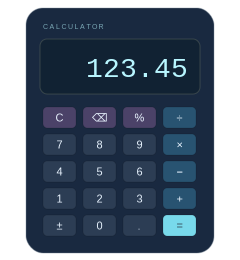
CALCULATOR
0
GRAPHING TOOLCoordinate Plane
y =
PointClick the plane to place points
INTERACTIVE PERIODIC TABLEExplore the Elements
Click any element for details
MONEYMoney Manipulatives
$0.00
Drag money here or click a piece below
×Drop to delete
CLASS CHECK-INAttendance
0/0present
👥
ACTIVE CLASSNo class loaded
•
DefaultNot checked in yet
0
✓
PresentReady to learn
0
Load a class to start attendanceChoose one of your saved classes above, then move each student magnet from Default to Present.
DATA STUDIOTable Maker
0total
+Add a value to beginYour chart updates as you type.
LIVE COUNTTally Chart
0total tallies
CategoryCountControls
No categories yetAdd one below to begin counting.
PATTERNSPattern Maker
Choose a color, then paint the squares
PATTERN BLOCKSShape Manipulatives
Drag, combine, and rotate pieces
Click or drag a shape below to start building
CVC WORDAll Short Vowels
Click the card for a new word
HIGH FREQUENCY WORDSKindergarten
Click the card for a new word
ROBOT HFWKindergarten Pack
0left0popped
Press Start to begin Robot HFW.
Robot HFW
Press Start to begin.
Health5 / 5
CUSTOM FLASHCARDSMy Cards
Click the card for another
ABCUppercase Letters
Click the card for a new letter
NUMBER LINE
Click a number or use ← →
HUNDREDS CHART1–100
TEN FRAMES0 counters
1 frame
DICTIONARYWord lookup
Aa
ADiscover a word
Search to see pronunciation, meanings, examples, synonyms, antonyms, and more.
Definitions and word data via Datamuse
TRANSLATIONTranslation
Original0 / 450Translation
Your translation will appear here.
LANGUAGELive Captions
OFF
NOW SPEAKING
Press Start captions when you’re ready.
PAUSEDCaption history
Scroll to review
Your caption history will appear here.
AUDIOVoice Memos
0 / 5
0:00
Ready to record a short memo.
Your recordings will appear here.
CAMERAPhotobooth
OFF
Photos stay in this board.
IMAGE TOOLBackground Remover
Choose an image to remove its background.
CAMERAMirror
OFF
Camera is off.
PLANNINGWeather
Finding your local weather…
Weather: Open-Meteo · Air quality: CAMS ENSEMBLE
☀️Sunny
Drag the arrow or tap a picture to choose the weather.
🌷Spring
Drag the arrow or tap a picture to choose a season.
OUTDOOR CONDITIONSTemperature
○—Finding local temperature…
—Outside now
—Outside now
ColdWarm
Finding your local temperature…
GEOGRAPHYExplore the World
GEOGRAPHY50 States
GEOGRAPHYCompass Explorer
SHAPE LABCircle
1 / 10
THIS IS ACircle
STRAIGHT SIDES0
VERTICES0
SHAPE FAMILYCurved shape
A circle is perfectly round. Every point on its edge is the same distance from its center.
Blue team active
Board cleared!
Fly Swat Settings
Teams
Targets
Flies on board
Changing targets or the number of flies resets the board and scores.
MINI GAMEMinesweeper
MINES10TIME0:00
Reveal a square to begin
Click to revealRight-click to flagDouble-click a number to clear around it
HANGMANREADY
INCORRECT—
TEACHER SETUPSet the Secret Word
Letters and spaces are supported. Spaces will be shown automatically.
Click anywhere to play again
WORDY PUZZLETEACHER SETUP
TEACHER SETUPSet the Secret Word
Choose a word from 3–8 letters. Students will get six guesses.

















 500